Elevating Digital Calligraphy: A Practical Review of the Textured Letters 4 Brush for Procreate
In the rapidly evolving landscape of digital art, the distinction between a generic design and a professional-grade piece often lies in the subtleties of texture and stroke dynamics. For artists, designers, and hobbyists utilizing the iPad ecosystem, Procreate Brush - Textured Letters 4 has emerged as a specialized tool designed to bridge the gap between traditional media aesthetics and digital efficiency. This brush set is not merely a collection of strokes; it is a curated resource aimed at enhancing lettering, modern calligraphy, and graphic design workflows within the Procreate application.
Understanding whether this specific brush set aligns with your creative needs requires a look beyond marketing claims. It involves evaluating its technical requirements, its aesthetic output, and how it compares to standard digital brushes or alternative software solutions. This analysis explores the practical applications of Textured Letters 4, helping you determine if it is the right addition to your digital toolkit.
Defining the Aesthetic: What Makes Textured Letters 4 Distinct?
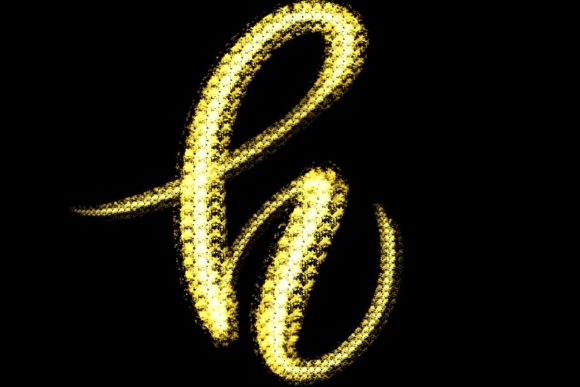
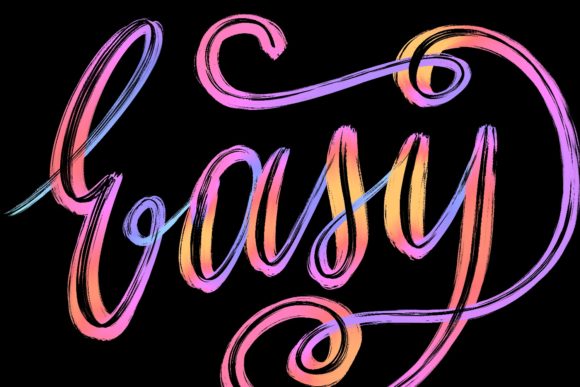
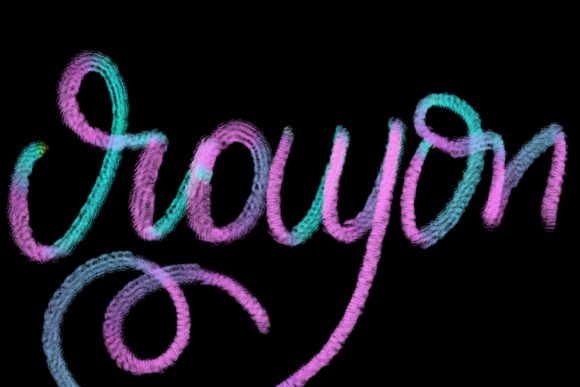
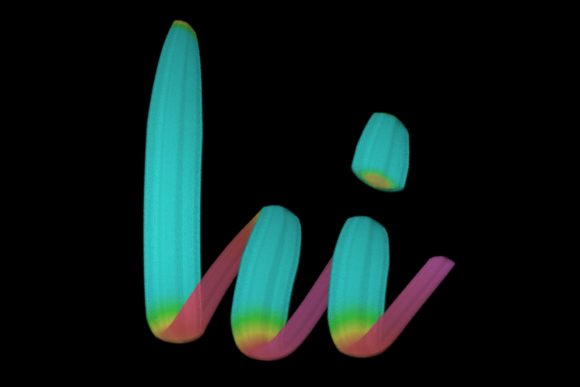
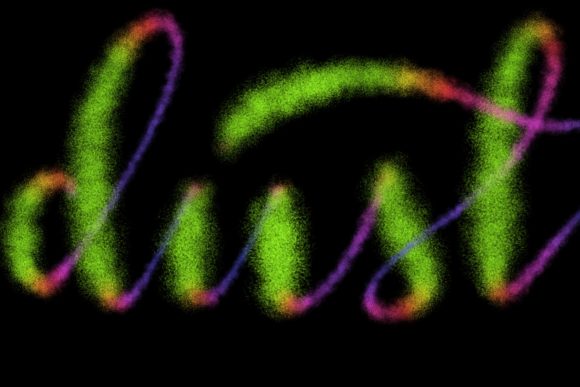
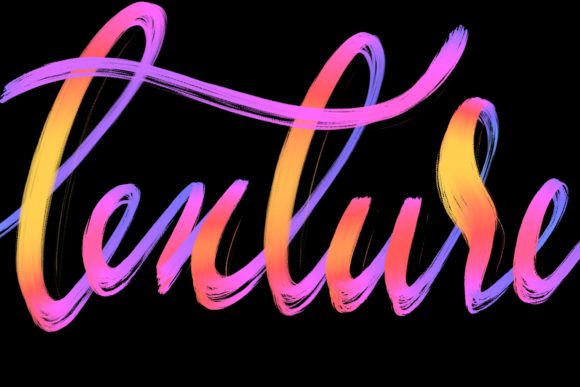
The primary appeal of Textured Letters 4 lies in its hand-drawn origin. Unlike algorithmic brushes that generate uniform lines, this set is designed to mimic the organic imperfections of physical media. When applied correctly, the brush produces letters with visible grain, varying opacity, and natural edge variations. This is particularly valuable for creators aiming to achieve a "human touch" in their digital work, a quality that is often lost in vector-based or overly polished digital fonts.
The brush is engineered specifically for modern calligraphy and lettering designs. This means the pressure sensitivity is tuned to respond dynamically to the Apple Pencil. A light touch yields delicate, whisper-thin lines, while increased pressure results in bold, textured strokes. This dynamic range allows for the creation of elegant letters that feel spontaneous rather than constructed. For professionals working on branding projects, wedding stationery, or greeting cards, this level of nuance can significantly reduce the time spent manually adding texture in post-production.
Key Applications and Use Cases
The versatility of this brush set extends beyond simple handwriting. Its design facilitates a wide array of graphic applications:
- Wedding Stationery: The elegant, textured strokes are ideal for invitations, place cards, and save-the-date designs where a romantic, hand-crafted feel is desired.
- Quote Designs and Social Media Graphics: Influencers and content creators can produce visually engaging quote images that stand out against flat, digital backgrounds.
- Logo Design: For brands seeking an artisanal or boutique identity, the brush allows for the creation of unique logotypes that cannot be replicated with standard typefaces.
- Greeting Cards: The ability to quickly generate varied lettering styles makes it efficient for producing seasonal or custom card designs.
Technical Requirements and Compatibility Constraints
Before investing in any digital asset, it is crucial to understand the hardware and software ecosystem required to utilize it effectively. Procreate Brush - Textured Letters 4 is exclusively compatible with the Procreate app on iPad. This exclusivity is both a strength and a limitation, depending on your workflow.
To experience the intended performance, users must possess an iPad Pro (or a compatible iPad model that supports Procreate’s full feature set) and an Apple Pencil. The brush relies heavily on pressure sensitivity and tilt recognition. Without a pressure-sensitive stylus like the Apple Pencil, the brush cannot modulate line weight or texture density, rendering it ineffective for its intended purpose. It is important to note that this brush is not suitable for Photoshop, Illustrator, or any desktop-based computer software. Attempting to import these brushes into non-Procreate environments will result in errors or incompatible file formats.
This constraint means that if your primary workflow involves desktop applications like Adobe Creative Cloud, this brush set will not integrate seamlessly. You would need to create your assets on the iPad and then export them for further editing on a computer, which adds steps to your production pipeline.
Comparative Analysis: Digital Brushes vs. Traditional Media and Alternatives
When evaluating Textured Letters 4, it is helpful to compare it against other methods of achieving similar visual results. The decision often comes down to a trade-off between authenticity, convenience, and editability.
Digital Brushes vs. Hand-Lettered Ink
Traditional ink calligraphy offers unparalleled authenticity but lacks the undo button and layer management of digital tools. Procreate Brush - Textured Letters 4 offers a compelling middle ground. It provides the visual texture of ink on paper but retains the flexibility of digital editing. You can adjust opacity, change colors instantly, and reposition elements without starting over. However, purists may argue that the texture, while high-quality, still lacks the microscopic randomness of real ink bleeding into paper fibers. For most commercial and social media applications, this difference is negligible, but for fine art prints, traditional media may still hold the edge.
Specialized Brushes vs. Standard Procreate Defaults
Procreate comes with a robust library of default brushes. Why choose a paid or specialized set like Textured Letters 4? Standard calligraphy brushes often produce clean, vector-like lines that can appear sterile. While you can add texture overlays separately, this requires additional layers and blending modes. Textured Letters 4 bakes the texture into the brush stroke itself. This streamlines the workflow, allowing artists to focus on composition and letterform rather than post-processing effects. The trade-off is less control over the specific type of texture compared to manual overlay methods, but the gain in speed and ease of use is significant for high-volume creators.
iPad Procreate vs. Desktop Vector Tools
For logo design, many professionals prefer vector tools like Adobe Illustrator because they offer infinite scalability. Procreate is a raster-based application, meaning images are made of pixels. While Textured Letters 4 creates high-resolution artwork, it does not scale infinitely without potential pixelation. Therefore, if your primary goal is creating logos for large-format printing (such as billboards), you may need to trace your Procreate lettering in a vector program afterward. For web graphics, social media, and standard print sizes, the resolution provided by the iPad Pro is more than sufficient.
Decision Factors: Is This Brush Right for You?
Choosing the right tools depends on your specific goals, skill level, and existing workflow. Here are some factors to consider when deciding if Procreate Brush - Textured Letters 4 is a worthwhile investment.
When It Is the Right Choice
- You Prioritize Workflow Efficiency: If you create content regularly, such as social media posts or client commissions, the ability to generate textured lettering in a single stroke saves considerable time.
- You Own the Required Hardware: If you already use an iPad Pro and Apple Pencil for illustration or design, this brush integrates naturally into your existing setup.
- You Seek an Organic Aesthetic: If your brand or artistic style leans towards rustic, handmade, or elegant visuals, this brush delivers that look without the mess of physical supplies.
- You Are a Beginner to Intermediate Letterer: The brush’s responsiveness can help mask minor inconsistencies in stroke control, providing a more polished look even as you refine your skills.
When You Might Need an Alternative
- You Work Primarily on Desktop: If you do not own an iPad or prefer working on a computer, this brush is unusable. You would be better served by Photoshop brushes or vector font packages.
- You Require Pure Vector Scalability: If your work demands infinite scaling without any rasterization, dedicated vector lettering tools or custom font creation software may be more appropriate.
- You Prefer Total Control Over Texture: If you enjoy the process of manually adding grain, noise, and overlays to achieve a specific look, you might find pre-textured brushes restrictive.
Maximizing Value: Tips for Using Textured Letters 4
To get the most out of this brush set, consider the following practical tips. First, experiment with the opacity and flow settings within Procreate. While the brush is pre-configured, slight adjustments can help match the texture to different background papers or digital canvases. Second, utilize the layer blending modes. Placing textured lettering on a "Multiply" or "Overlay" layer can enhance the interaction between the text and the background, making the integration look more natural.
Additionally, remember that the Apple Pencil’s angle affects the stroke. Rotating your hand or adjusting the tilt can reveal different aspects of the brush’s texture, offering variety within a single piece. Finally, always work at a high resolution (300 DPI or higher) to ensure that the textured details remain crisp, especially if you plan to print your designs.
Final Thoughts
Procreate Brush - Textured Letters 4 represents a specialized solution for digital artists seeking to infuse their work with organic warmth. It is not a universal tool for all design needs, but for those within the Procreate ecosystem looking to enhance their lettering and calligraphy projects, it offers a balanced blend of aesthetic quality and operational efficiency. By understanding its limitations regarding software compatibility and raster-based output, users can make an informed decision about whether it fits their creative strategy. For those who value the look of hand-drawn art but require the flexibility of digital editing, this brush set serves as a powerful ally in jazzing up workspace projects, home decor designs, and professional client deliverables.